
Save One PSD Layer as PNG on Android
Quick Answer: Saving a Single PSD Layer on Android
You can save a single PSD layer as a PNG on Android using a mobile viewer with layer export tools, such as PSD & PSB File Viewer. When a collaborator sends a Photoshop file (.psd or .psb) and you only need one logo, icon, or graphic element, you do not need to wait for a desktop computer. With PSD & PSB File Viewer, you can inspect the layer structure, locate the layer you need, and save that single layer directly to your device as a PNG image.
Why Export an Individual Layer as a PNG?
Design files can combine multiple visual assets into a single canvas. A client may send a large multi-layered poster or layout when you only need a brand mark, an icon, or a product cut-out. In these situations, extracting one specific layer gives you a separate asset that you can use on your phone.
According to Adobe documentation, PNG supports transparency and works well for logos, icons, and detailed images. When a layer has transparent surrounding space, saving it as PNG can preserve transparent pixels, although how they appear depends on the app where you use the PNG.
However, it is important to understand how layer data behaves during export. Official Adobe documentation states that exporting to PNG does not preserve editable layers. The resulting PNG is a flat raster file. Layer effects, vector masks, smart objects, and editable text become flattened into pixels. Adobe recommends saving a working copy in PSD format before exporting to preserve layers, effects, and editing capability. If you need to make revisions later, keep the original PSD file intact.
In addition, do not assume that every layer will have a transparent background. If a layer contains an opaque fill, a solid background color, or artwork merged onto a base color, the exported PNG will retain that background.
How to Save One PSD Layer as a PNG on Android
With PSD & PSB File Viewer, you can inspect and extract individual layers on an Android device through a few steps:
- Open the PSD or PSB file: Open the PSD or PSB file in PSD & PSB File Viewer.
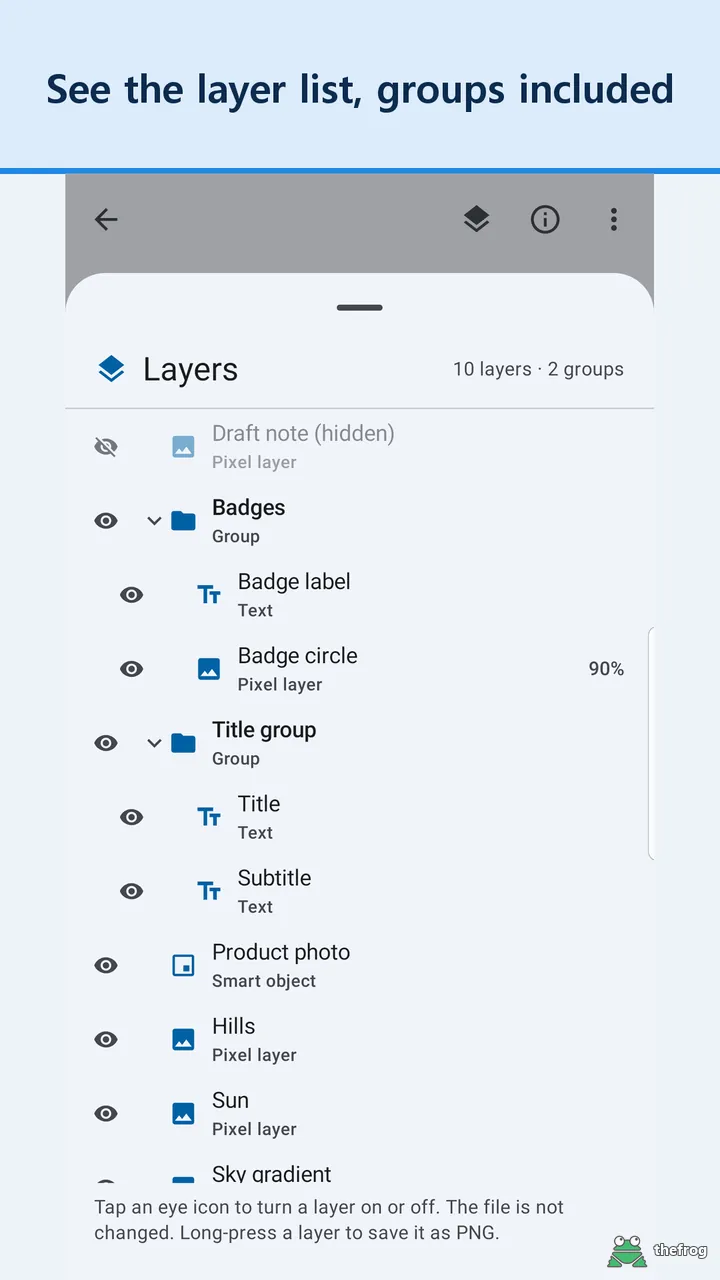
- Browse the layer list: Open the layer list to view the document structure. PSD & PSB File Viewer displays layer groups, hidden layers, opacity levels, and layer types such as text, smart objects, and adjustment layers.
- Identify your target layer: Locate the element you need, such as a logo or icon. With Plus features in PSD & PSB File Viewer, you can toggle individual layers on and off to confirm which elements belong to that layer.
- Save the single layer as a PNG: Select the option to save the layer as a PNG. The app exports that specific layer to your device as a standalone PNG file.
Requesting Isolated Assets from Collaborators
In some cases, a PSD file may contain complex layer structures, clipping masks, or adjustment layers that alter how an individual layer appears. If the exported layer does not match the composite image, you can ask the designer to export the intended result from desktop Photoshop.
Adobe documentation notes that Photoshop can export each layer as a separate file using the Export Layers to Files feature, and it can export only layers whose visibility is enabled. Photoshop also permits selected layers to be exported through Quick Export or Export As directly from the Layers panel. If you need an asset prepared from desktop, you can copy and send this note:
Hi [Name], could you please export the [Layer Name] layer as a separate PNG with a transparent background? Alternatively, please make sure the layer is isolated in the PSD so I can view and extract it on mobile. Thank you!
Checklist Before Using Your Exported PNG
Before sharing or publishing the PNG you extracted on Android, review this quick checklist:
- Check background transparency: Open the exported PNG to verify whether the background is transparent or contains an opaque fill from the original artwork.
- Verify visual completeness: Confirm that no essential drop shadows, adjustment layers, or clipping masks from the PSD were left behind.
- Preserve the original PSD: Treat the PNG as an output asset. Retain the original PSD file so that editable text, paths, and layer styles remain intact for future work.
- Review document details: Check document info in PSD & PSB File Viewer to review the PSD or PSB document's pixel dimensions, DPI, and color mode.
About PSD & PSB File Viewer
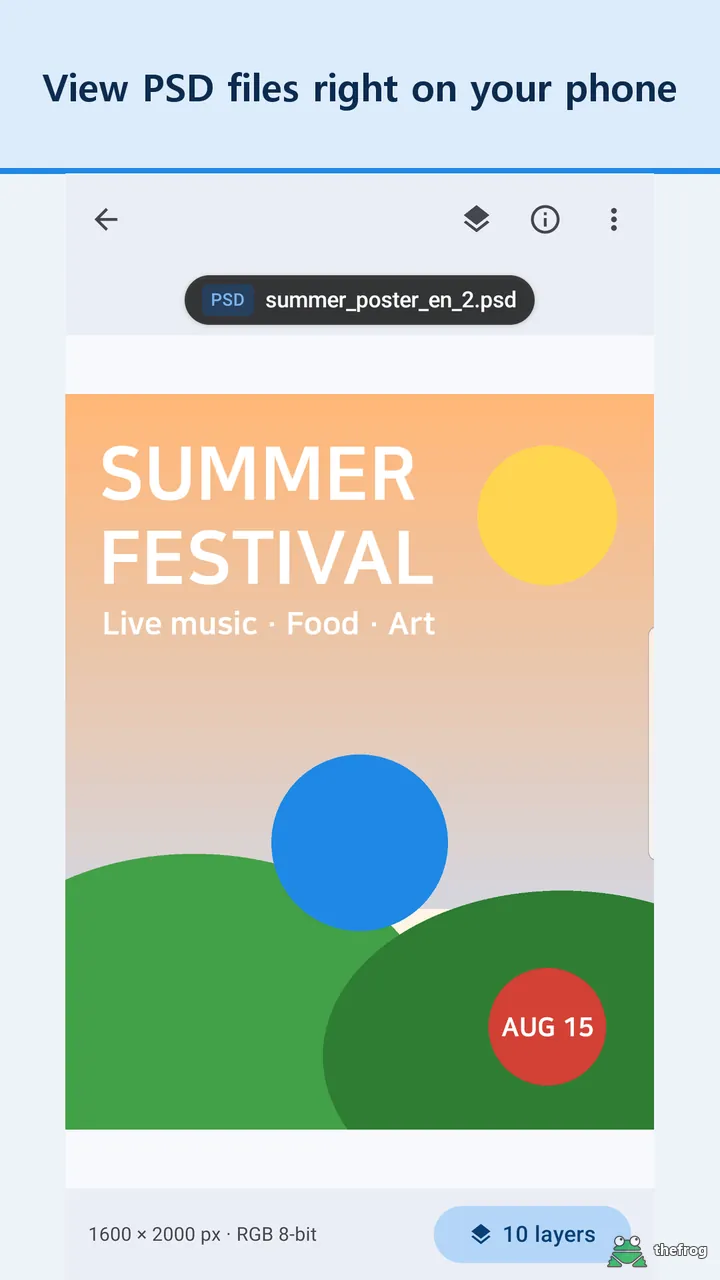
PSD & PSB File Viewer opens PSD and PSB files directly on your phone without requiring desktop software. You can pinch or double-tap to zoom into the full image, browse layer groups, and review document info such as dimensions in pixels, DPI, bit depth, and color mode. With the Plus upgrade—available as a one-time purchase rather than a subscription—you can turn layers on and off, change layer colors, open files directly from ZIP archives, and save a single layer as a PNG. The app processes files locally on your device, uses no ads or analytics SDKs, and requires no account. You can get PSD & PSB File Viewer on Google Play.
References: Learn more about file formats and layer export in the Adobe Photoshop PNG guide and Adobe Export Layers as Files guide.
Learn more about PSD & PSB File Viewer or get it on Google Play.

Enjoying the app? Leave a review on Google Play: PSD & PSB File Viewer